When protecting your intellectual property with DoneEx VbaCompiler for Excel, choosing how to deploy your compiled project is just as important as the compilation itself. The software offers multiple ways to structure your output, but when it comes to smooth deployment, the Single file result (Embedded DLL) compilation option stands out as the premier choice.
Understanding VbaCompiler Output Formats
By default, VbaCompiler for Excel strips the original VBA source code out of your Excel file, converts it into secure C-code, and compiles it into a native Windows Dynamic Link Library (DLL).
Depending on your project configuration, the standard compilation process typically generates multiple separate components:
- The modified Excel workbook or add-in (maintaining its original extension like .xls, .xlsm, .xlsb, .xla or .xlam).
- One or two external Windows DLL files (depending on whether you targeted 32-bit Excel, 64-bit Excel, or both).
In a standard multi-file distribution setup, the host Excel file retains only a minimal amount of “connective” VBA code. This code acts as a bridge, looking for and invoking the compiled functions from the external DLL files when the file is opened.
The Power of a Single File Result
The Single file result compilation feature completely reimagines this workflow. Instead of leaving the compiled DLL files sitting outside of your spreadsheet, VbaCompiler automatically embeds the 32-bit and 64-bit DLLs directly inside your compiled Excel workbook or add-in.
When you select this option, the compiler generates a single, self-contained file that completely retains its original extension. The embedded DLL is packaged securely inside the file structure. When your user launches the spreadsheet, the connective code automatically extracts the enabled DLL into the background and runs the functions seamlessly.
Note: The Single file result option requires a Professional License.
Why a Single File Result is Best
When you deliver a workbook to a customer, user experience and operational reliability are critical. Distributing your work via a Single File Result offers distinct advantages over multi-file deployment:
1. Frictionless Customer Experience
With a multi-file setup, your customer must download a ZIP file, extract all files into the exact same local folder, and ensure they stay together. If they decide to move the spreadsheet to another directory later but forget to move the accompanying DLLs, the workbook breaks instantly. A single file result compilation eliminates this entirely. Your client receives one file, saves it anywhere on their local hard drive, and starts working immediately. They can copy, move, or rename the file without breaking dependencies.
2. Elimination of Directory Path Errors
In standard multi-file distribution, the workbook expects to find its companion DLL files in the same folder or along a strict alternative path. If a customer accidentally separates the workbook from its DLLs, Excel will throw macro errors. Embedding the DLL ensures that the spreadsheet and its operational logic are permanently unified.
How to Enable Single File Result
Activating this deployment mode is straightforward. Before running your next compilation, use the following steps:
- Open your project settings in the VbaCompiler for Excel main interface.
- Locate the compilation options panel.
- Check the box labeled Single file result (Embedded DLL).
- Set your target Excel bitness (selecting “Both 32 and 64” ensures maximum compatibility on the customer side).
- Click Compile.
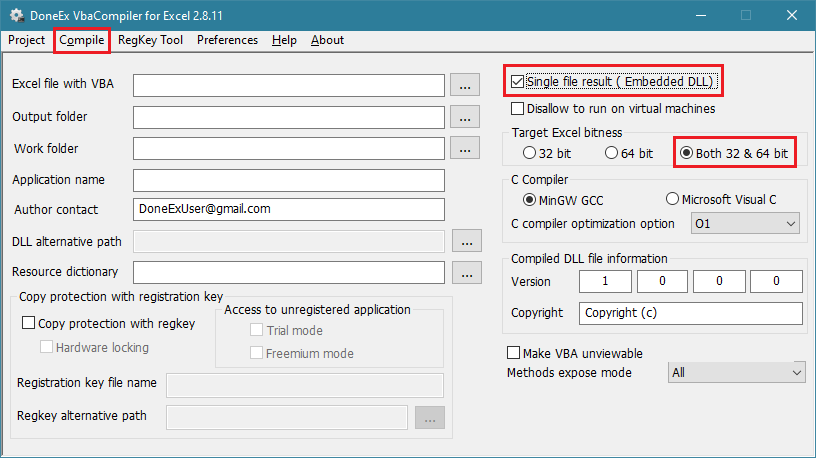
If you prefer automating your builds via the command line, you can achieve the exact same output by appending the -packdll switch to your compilation script.


