Digitally signing your Visual Basic for Applications (VBA) macro project builds trust, prevents security pop-up warnings, and ensures your code hasn’t been tampered with. Adding a timestamping service when you apply your digital signature ensures your macros remain valid even after your code signing certificate expires.
What Is a Timestamping Service and Why Is Applying a Digital Signature with it Necessary?
When you sign a macro without a timestamp, the digital signature is tied directly to the current certificate’s validity period (usually 1 to 3 years). Once the certificate expires, Microsoft Office marks the signature as invalid and alerts users.
A Timestamp Authority (TSA) acts as an independent cryptographic notary. It verifies that the macro was signed while the certificate was active and valid. This guarantees long-term validity—your macro will stay trusted indefinitely as long as the underlying code remains unchanged.
Step 1: Configure Windows Registry for Timestamping
Unlike standard executable signers, the Office Visual Basic Editor (VBE) does not have a timestamping option in its user interface. Instead, it checks specific Windows Registry keys during the signing process.
Option A: Automatic Registry Setup (Recommended)
-
Press
Win + R, typecmd, and press Enter to open the Command Prompt. -
Copy and paste the following commands to add your preferred Timestamping Server URL (replace the URL with your CA’s timestamp server if using a different authority):
reg add "HKCU\Software\Microsoft\VBA\Security" /v "TimeStampURL" /t REG_SZ /d "http://timestamp.digicert.com" /f reg add "HKCU\Software\Microsoft\VBA\Security" /v "TimeStampRetryCount" /t REG_DWORD /d 3 /f reg add "HKCU\Software\Microsoft\VBA\Security" /v "TimeStampRetryDelay" /t REG_DWORD /d 3 /f
Option B: Manual Registry Setup
-
Press
Win + R, typeregedit, and press Enter. -
Navigate to:
HKEY_CURRENT_USER\Software\Microsoft\VBA\Security -
Create three entries inside the Security key:
| Value Name | Data Type | Value Data / Example | Description |
| TimeStampURL | REG_SZ (String) |
http://timestamp.digicert.com |
URL provided by your Certificate Authority (CA) |
| TimeStampRetryCount | REG_DWORD |
3 |
Number of network attempts to contact the server |
| TimeStampRetryDelay | REG_DWORD |
3 |
Delay between retry attempts (in seconds) |
Common Timestamp Server URLs:
DigiCert:
http://timestamp.digicert.comSectigo / Comodo: http://timestamp.comodoca.com/authenticode
GlobalSign: http://timestamp.globalsign.com/tsa/r45standard
Step 2: Apply the Digital Signature in Office (VBE) With Timestamping
Once the registry keys are configured, apply the signature in your macro-enabled workbook or document (.xlsm, .docm, .pptm).
1.Open the Visual Basic Editor:
Open your macro-enabled document (Excel, Word, etc.). Press Alt + F11 (or go to Developer > Visual Basic) to launch the editor.
2.Select Your VBA Project:
In the Project Explorer pane on the left, click on the project name corresponding to your file.
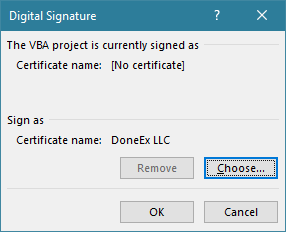
3.Open the Digital Signature Window:
On the top menu bar, click Tools > Digital Signature
4.Choose Your Code Signing Certificate:
Click Choose… to bring up your installed personal or hardware token certificates. Select your active Code Signing Certificate and click OK.
5.Apply Signature with Active Internet Connection:Internet connection is strictly required for this step.
Ensure your machine is connected to the internet. Click OK in the Digital Signature dialog. The editor will communicate with the timestamping server automatically via the configured registry URL.
6.Save the Document:
Press Ctrl + S or save the file directly within Office. This writes both the digital signature and the timestamp counter-signature into the file structure.
Step 3: Verify the Timestamp and Digital Signature
-
Go back to Tools > Digital Signature… in the Visual Basic Editor.
-
Click Detail… on the attached certificate.
-
Select the Advanced or Countersignatures tab (depending on your Windows version). You should see a timestamp entry listing the exact date and time the server countersigned your macro project.
Best Practices and Troubleshooting
-
Active Internet Connection Required: If the Visual Basic Editor cannot reach the
TimeStampURL, the signing process may time out or revert to a simple signature without a timestamp. -
Avoid Self-Signed Certificates for Distribution: Tools like
SelfCert.execreate self-signed certificates that work locally but are untrusted on external workstations. For commercial or enterprise distribution, use a publicly trusted Certificate Authority (DigiCert, Sectigo, GlobalSign). -
RFC 3161 Protocol Note: Note that Microsoft Office VBA uses legacy Authenticode timestamping mechanisms rather than RFC 3161 protocols.Ensure you use the standard Authenticode endpoint URL provided by your Certificate Authority.
Explore Also:
Create a Digital Signature for Excel VBA Projects


