If you have ever built an automated Excel workbook only to have a user call you saying, “Your file isn’t working,” you already know the culprit: Microsoft Excel’s dreaded “Security Warning: Macros have been disabled” banner. To protect users from malicious software, Excel blocks unsigned macros by default. While this protects workstations from security threats, it creates friction for legitimate tools built by financial analysts, developers, and automation engineers. The solution is VBA code signing. A VBA digital signature acts as an official seal of authenticity for your macros, removing security warnings, establishing trust, and verifying that your code hasn’t been tampered with.
This complete guide breaks down everything you need to know about Excel macro certificates, setting up digital signatures, and establishing a complete security strategy for your VBA projects.
What Is a VBA Digital Signature & How Does It Work?
A VBA digital signature is a cryptographic seal attached to your Visual Basic for Applications (VBA) project. It converts an unverified macro file into a trusted document.
When you sign a VBA project, your digital certificate creates two key guarantees:
-
Identity (Authenticity): It proves to Excel and your users exactly who authored the code.
-
Integrity (Tamper Prevention): It guarantees that no one has modified, corrupted, or altered a single line of code since you signed it.
Choosing Your Certificate for VBA: Self-Signed Digital Signature vs. Commercial CA
Before you can digitally sign a macro project in Excel, you need an Excel macro certificate. You have two choices depending on your audience:
| Feature | Self-Signed Certificate (SelfCert.exe) | Commercial Code Signing Certificate |
| Cost | Free (Built into Microsoft Office) | Paid annual subscription |
| Best For | Personal automation & internal testing | Commercial distribution, external clients, enterprise deployment |
| Trust Scope | Trusted only on your local computer | Trusted globally across all Windows devices |
| Issuing Body | Created locally by you | Public Certificate Authority (DigiCert, Sectigo, etc.) |
| Identity Verification | None | Requires business identity verification |
Option A: Self-Signed Certificates (SelfCert.exe)
Microsoft Office includes a free utility called SelfCert.exe. It generates a local digital certificate stored in your personal Windows Certificate Store.
-
Use case: Personal productivity scripts, testing, or files used exclusively on your own workstation.
-
Limitation: If you email a workbook signed with a self-signed certificate to a colleague, their computer will treat it as untrusted because their system does not possess your private certificate key.
Option B: Commercial Code Signing Certificates
For distributing macro-enabled workbooks to clients, external stakeholders, or company-wide networks, you need a certificate issued by a trusted Certificate Authority (CA) such as DigiCert, Sectigo, or SSL.com.
-
Use case: Commercial Excel applications, enterprise add-ins (
.xlam), and client-facing tools. -
Advantage: Public CAs are automatically trusted by Windows and Microsoft Office, allowing your macros to run smoothly on any workstation worldwide.
Step-by-Step Guide: How to create a Digital Signature for a VBA Project
Applying a VBA code signing certificate to an Excel workbook takes less than two minutes once you have a valid certificate installed.
Step 1: Create or Install Your Certificate
-
For Testing (Self-Signed): Press
Win + R, typeC:\Program Files\Microsoft Office\root\Office16\SELFCERT.EXE(path varies by Office version), enter a certificate name, and click OK. -
For Production: Install your
.pfxor hardware token certificate provided by your Certificate Authority into the Windows Personal Certificate Store.
Step 2: Open the VBA Editor
-
Open your macro-enabled workbook (
.xlsm,.xlsb, or.xlam). -
Press
Alt + F11to launch the Visual Basic Editor (VBE).
Step 3: Attach the Certificate
-
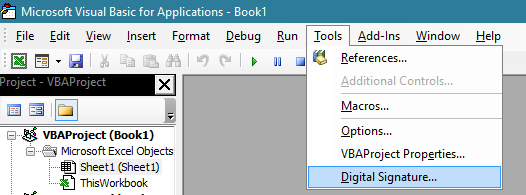
In the VBE top menu, select Tools > Digital Signature…
-
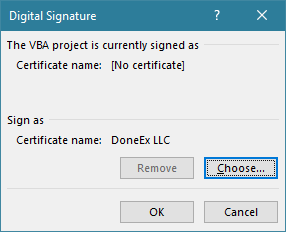
In the dialog box that appears, click the Choose… button.
-
Select your desired certificate from the list and click OK.
-
You will see your certificate details displayed in the dialog. Click OK to apply it.
Step 4: Save the Workbook
Return to the main Excel window and save the file (Ctrl + S). The digital signature is now embedded directly into the document structure.
Pro-Tip: Timestamp Your Code Signatures By default, a digital signature becomes invalid the moment your digital certificate expires (usually after 1–3 years). By configuring a Timestamp Server URL in your Windows Registry (
RFC 3161 Timestamping), Excel verifies that the code was signed while the certificate was valid, allowing your trusted VBA macros to keep running long after the certificate itself expires.
Excel Trust Center Settings & Enterprise Deployment
To maximize the benefits of code signing, you must configure how Excel handles macro execution.
Configuring Excel Trust Center Settings
In Excel, navigate to File > Options > Trust Center > Trust Center Settings > Macro Settings.
The recommended setting for security-conscious organizations is:
-
Disable all macros except digitally signed macros
Under this setting:
-
Unsigned macros are completely blocked without prompting the user.
-
Macros signed with a valid, trusted Excel macro certificate run automatically without warnings.
-
Macros signed by a new or unrecognized publisher display a one-time prompt asking the user to trust the publisher.
Enterprise Deployment via Group Policy (GPO)
System Administrators managing enterprise environments can deploy public certificates silently across all employee machines:
-
Export the public root certificate (
.cer) of your organization’s internal or commercial signing authority. -
Push the certificate to employee workstations using Group Policy Management (GPO) under:
Computer Configuration > Policies > Windows Settings > Security Settings > Public Key Policies > Trusted Publishers -
Once deployed, any workbook signed with that certificate executes seamlessly across the entire corporate network.
Code Signing vs. Code Protection: Building a Complete Security Strategy
A common myth among developers is that applying a VBA digital signature protects your intellectual property from being viewed or stolen. It does not.
Understanding the difference between Code Signing and Code Protection is critical for protecting your work:
-
Code Signing (Trust): Proves author identity and integrity. It verifies code integrity by confirming who wrote the code and that the code hasn’t been modified or tampered with. While it eliminates Excel macro security warnings, the underlying VBA source code remains completely visible and editable if someone opens the VBE.
-
Code Protection (Security): Obfuscates, encrypts, or compiles the source code into native binary dynamic link libraries (
.dll). This prevents competitors, clients, or end-users from inspecting, copying, or reverse-engineering your intellectual property.
To achieve complete commercial security, combine both techniques: protect your underlying algorithms using compilation tools like VBA Compiler to convert your macros into secure binaries, and then apply a VBA digital signature to ensure smooth distribution and trusted execution.
Frequently Asked Questions (FAQ) about VBA Digital Signature
Why does my VBA digital signature disappear when I edit my code?
A digital signature relies on a cryptographic hash of your exact VBA code. Editing even a single line, comment, or space changes the code hash. To prevent unauthorized tampering, Excel automatically invalidates and removes the signature whenever modifications are saved. You must re-apply the signature after making edits.
How do I fix the “Signature Removed” warning in Excel?
If Excel reports that a signature was removed or is invalid, check three things:
-
The code was modified after it was signed.
-
The signing certificate has expired and was not timestamped during signing.
-
The certificate authority that issued the signature is not installed in your computer’s Trusted Root Certification Authorities store.
Does code signing bypass Windows “Mark of the Web” (MOTW)?
Files downloaded directly from the internet or received as email attachments carry a Windows “Mark of the Web” flag that may cause Excel to open them in Protected View. While a digital signature establishes publisher trust, users may still need to click “Unblock” in the file’s properties window once before opening, or save the file to an Excel Trusted Location.


