Automating the compilation of multiple Excel workbooks saves time and ensures consistent builds across your projects. Using the Windows Batch file (
.bat) to conduct command line compilations with DoneEx VBA Compiler, you can run the compilation process from the command line for an entire set of files at once. This step-by-step guide walks you through setting up and running your own Batch file to compile your VBA Excel Workbooks.
Prerequisites
Before writing the script, ensure you have:
-
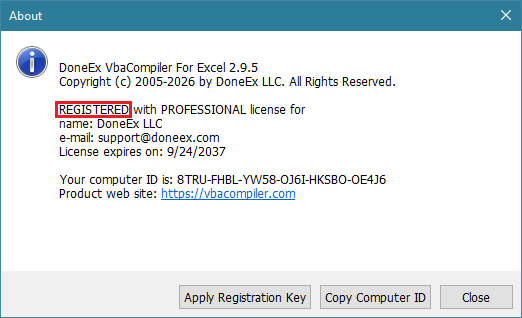
DoneEx VBA Compiler installed on your system, registered with a purchased license.
-
The path to
VBACompiler.exe(typically located inC:\Program Files (x86)\DoneEx\VBACompiler\).
Step 1: Locate Your File Paths
Identify the full paths for your compiler executable, input folder, and output destination.
-
Compiler Path:
C:\Program Files (x86)\DoneEx\VBACompiler\VBACompiler.exe -
Source Directory:
C:\MyExcelProjects\SourceWorkbooks -
Output Directory:
C:\MyExcelProjects\CompiledEXE
Step 2: Create the Batch File Which Will Compile Your Excel VBA Workbooks
-
Open Notepad (or any plain text editor).
-
Copy and paste the following script into your editor:
:: Define Paths (Adjust these paths to match your environment)
set COMPILER_PATH=C:\Program Files (x86)\DoneEx\VBACompiler\vbaclr4e.exe
set SOURCE_DIR=C:\Users\YOURUSERNAMEHERE\Documents\SourceWorkbooks
set OUTPUT_DIR=C:\Users\YOURUSERNAMEHERE\Documents\Compiledfiles
set TMP_DIR=C:\Users\YOURUSERNAMEHERE\Documents\Temp

:: Create directories if they do not exist
if not exist "%OUTPUT_DIR%" mkdir "%OUTPUT_DIR%"
if not exist "%TMP_DIR%" mkdir "%TMP_DIR%"

echo Starting Batch Compilation with DoneEx VBA Compiler

:: go through every Excel macro workbook in the source directory
"%COMPILER_PATH%" "%SOURCE_DIR%\ApproxPi.xls" -wkpath="%TMP_DIR%" -tgt="%OUTPUT_DIR%\ApproxPi.xls"
"%COMPILER_PATH%" "%SOURCE_DIR%\App.xls" -wkpath="%TMP_DIR%" -tgt="%OUTPUT_DIR%\App.xlsx"


echo Batch process finished.
pause
In this example:
COMPILER_PATHis the path to the VBA Compiler executableSOURCE_DIRis the folder which contains the workbooks you wish to compileOUTPUT_DIRis the folder that will have the result of the compilationTMP_DIRis the temporary work folder for the compiler
Be sure to adjust the names of the files and folders in the batch script to match the files that you wish to create and compile as well as setting the appropriate directory locations on your computer. We recommend using the “My Documents” folders (and its sub-folders) for the current user executing the batch file as the directories in the script, as these folders have the access rights needed to conduct the compilation.
You can further customize your compilation options for each workbook in the .bat file individually using the VBA Compiler Command Line Compilation Options.
Step 3: Save and Run the Script to Batch Compile VBA Excel Workbooks
-
In Notepad, click File > Save As.
-
Set Save as type to
All Files (*.*). -
Name the file with a
.batextension and save it to your project directory. -
Double-click the newly created file to compile your workbooks.
Troubleshooting Common Issues
-
File Not Found Errors: Wrap all path variables in quotes (
"...") to handle paths containing spaces (e.g.,Program Files). -
Permission Denied: Run the
.batfile as Administrator if saving output files to protected system directories. -
Skipped Files: Ensure your file extension inside the
forloop matches your source file formats (*.xlsm,*.xls, or*.xlsb).


