If you frequently work with Microsoft Excel macros or local web servers, you have likely run into the dreaded security bar: “Macros have been disabled” or “Your connection is not private.” Microsoft Office and web browsers treat unsigned code and untrusted local environments with extreme caution. To run your scripts smoothly, you need a digital certificate—a digital passport that proves your code is safe and hasn’t been tampered with. While commercial certificates cost hundreds of dollars per year, you can easily create a free self-signed certificate for local development, testing, and internal office automation.
In this guide, we will break down what self-signed certificates are and walk through three simple ways to generate them on Windows.
What Is a Self-Signed Digital Certificate?
A digital certificate links an identity (you or your business) to a pair of cryptographic keys. When you attach this certificate to an Excel workbook (.xlsm or .xlsb) or a local web server, it guarantees two things:
-
Authenticity: The code or project came from you.
-
Integrity: The code has not been altered or corrupted since it was signed.
Standard certificates are issued by a trusted Third-Party Certificate Authority (CA) like DigiCert or Sectigo. A self-signed certificate, on the other hand, is created and signed by you.
Differences between Comercial and Self-Signed Certificates
Commercial CA Certificate
- Issued by a trusted third party
- Costs $100–$500+ per year
- Works globally on any computer
- Best for public software / websites
Self-Signed Certificate
- 100% Free
- Ideal for local dev & internal
- Best for VBA macros & testing
While self-signed certificates are not meant for public software distribution, they are the single best way to generate a self-signed SSL certificate for free when building local projects or running personal Excel tools.
Method 1: Create a Certificate for Excel VBA Using SELFCERT.EXE
If your goal is to stop Microsoft Excel from blocking your VBA macros, Microsoft provides a built-in utility called SELFCERT.EXE. This is the easiest method for Excel users.
Step 1: Locate SELFCERT.EXE
-
Open Windows File Explorer.
-
Navigate to your Microsoft Office installation folder. The standard location for modern 64-bit Office installations is:
c:\Program Files (x86)\Microsoft Office\root\Office16\ -
Scroll down and double-click SELFCERT.EXE.
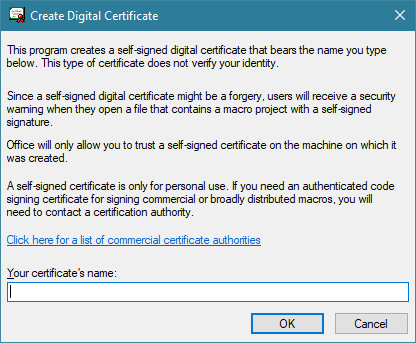
Step 2: Create Your Certificate
-
When the tool opens, a dialog box will ask for a Your Certificate Name.
-
Type a clear name, such as
My Local VBA CertorDeveloper Cert - John Doe. -
Click OK. You will see a success message stating that your certificate was created.
Step 3: Sign Your Excel VBA Project
-
Open your macro-enabled Excel workbook (
.xlsm). -
Press
ALT + F11to open the VBA Editor. -
Click Tools in the top menu, then select Digital Signature…
-
Click Choose…, select the certificate you just created, and click OK.
-
Save your workbook. Your VBA project is now digitally signed!
Method 2: Generate a Self-Signed Certificate via PowerShell
Windows PowerShell includes a native command that lets you generate robust digital certificates in seconds. This method is great if SELFCERT.EXE is missing from your Office installation.
Step 1: Open PowerShell as Administrator
-
Press the
Windows Key, type PowerShell. -
Right-click Windows PowerShell and select Run as administrator.
Step 2: Run the Creation Command
Copy and paste the following command into PowerShell and press Enter:
New-SelfSignedCertificate -Type CodeSigningCert -Subject "CN=MyLocalCodeCert" -CertStoreLocation "Cert:\CurrentUser\My"
This creates a new Code Signing Certificate named MyLocalCodeCert and stores it safely in your Windows Certificate Store. It will immediately appear in Excel’s Tools > Digital Signature menu.
Method 3: Create a Self-Signed SSL Certificate for Local Development
If you are developing local web applications or testing local web servers alongside your tools, you may need an SSL/TLS certificate. You can easily create a self-signed SSL certificate for local development using OpenSSL.
If you have OpenSSL installed (via Git Bash, WSL, or Windows binaries), run this single-line command in your terminal:
openssl req -x509 -nodes -days 365 -newkey rsa:2048 -keyout local.key -out local.crt -subj "/CN=localhost"
What this command does:
-
-x509: Specifies that you want a self-signed certificate instead of a certificate signing request (CSR). -
-nodes: Skips password-protecting the private key (ideal for automated local test servers). -
-days 365: Sets the certificate validity to 1 year. -
-newkey rsa:2048: Generates a secure 2048-bit RSA key pair. -
-keyout&-out: Saves your private key (local.key) and public certificate (local.crt).
How to Make Windows Trust Your Self-Signed Certificate
Because Windows did not issue this certificate through a recognized public root authority, it will mark it as “Untrusted” by default. To fix this on your local machine, you need to import it into your Trusted Root Store.
-
Press
Windows Key + R, typecertmgr.msc, and hit Enter. -
Expand the Personal > Certificates folder on the left side.
-
Locate the certificate you created (e.g.,
My Local VBA CertorMyLocalCodeCert). -
Right-click the certificate and select Copy.
-
On the left side, expand Trusted Root Certification Authorities.
-
Right-click the Certificates sub-folder and select Paste.
Once pasted, Windows will fully trust your custom certificate, and Excel will load your signed macro workbooks without displaying any security warnings.
Self-Signed Certificates vs. VBA Compiler: Complete Code Protection
Creating a free self-signed certificate solves the identity problem: it tells Excel that you wrote the code and that no one altered it. However, it is important to understand what a digital certificate does not do:
-
It does not encrypt your VBA code.
-
It does not hide your intellectual property.
-
It does not prevent someone from viewing or copying your source code.
Anyone who opens your .xlsm file can still access the Visual Basic Editor (ALT + F11) and read your proprietary formulas, macros, and business logic.
Taking Security to the Next Level
If you want to protect your hard work, proprietary algorithms, or commercial Excel tools from reverse engineering, signing your project is only the first step.
For full protection, consider compiling your VBA macros into native C code and binary DLL files using VBA Compiler. By converting your VBA code into a compiled DLL, you eliminate the source code entirely from the workbook—making it impossible for users to steal, modify, or crack your IP while keeping your Excel files running smoothly and securely.
Summary
Setting up a free self-signed certificate is a simple, effective way to streamline your workflow in Excel and local development environments:
-
Use SELFCERT.EXE for quick Office macro signing.
-
Use PowerShell for flexible Windows-native code signing.
-
Use OpenSSL to generate SSL certificates for local server testing.
-
Always import your certificate into the Trusted Root Certification Authorities store so Windows accepts it without warnings.
Combine digital signatures with native compilation to keep your Excel applications both seamless to run and completely secure!


