When distributing a professional Excel workbook or Excel add-in globally, delivering a seamless experience in the end-user’s native language is essential. This adaptation process—known as workbook localization (l10n) and internationalization (i18n)—ensures that your application feels native to users around the world.
While Excel handles basic environment translations, protecting your intellectual property using DoneEx VbaCompiler for Excel presents a unique challenge: your compiled VBA code needs to communicate runtime messages, registration prompts, and licensing alerts in multiple languages without exposing the underlying source code.
VbaCompiler solves this by leveraging a dedicated Run-Time Message (RTM) Resource Dictionary. This feature allows you to customize and translate all automated runtime interactions effortlessly.
What is Workbook Localization?
Workbook and Excel add-in localization involves translating all user-facing textual components within your spreadsheet application. This includes:
- Standard runtime error responses and alerts.
- Licensing, registration, and hardware-locking prompts.
- Trial-period expiration notifications (“nag” windows).
Hardcoding these strings directly into your VBA modules is an obstacle to internationalization and risks exposing critical logic. VbaCompiler moves these literals out of the code and manages them through external, secure resource files.
Implementing Localization with the RTM Resource Dictionary
VbaCompiler manages localized strings using a specialized Custom Resource Dictionary. This dictionary acts as a centralized translation map, replacing default English messages with the target language when the compiled workbook or add-in runs.
Step 1: Locate and Copy the Dictionary Template
Upon installing VbaCompiler for Excel, navigate to the installation directory and open the rsc sub-folder. Here, you will find template examples of the runtime resource files. Copy one of these template files to your active project working directory and rename it according to your target locale (e.g., strings_de.txt for German or strings_fr.txt for French).
Step 2: Edit the Resource Values
The resource dictionary is a plain text file encoded strictly in UTF-8 format. Open your copied file using a text editor like Microsoft Notepad.
The file structure follows a clean key-value format:
<RESOURCE_NAME>=<RESOURCE_VALUE>
To localize your workbook, adhere to the following rules:
- Modify only the right side: Edit only the <RESOURCE_VALUE> portion to the right of the = assignment sign.
- Preserve the keys: Do not alter the <RESOURCE_NAME> on the left. If a key name is modified or corrupted, the runtime library will ignore the customization and revert to the default English message.
- Keep messages on a single line: The entire text value must occupy a single continuous line in the text document. If you need to create a multi-line message box, use the \n symbol combination. VbaCompiler automatically converts \n into a line break at runtime.
Step 3: Utilize Dynamic Template Tags
Localizing an interactive application often requires injecting dynamic, real-time data into your messages. VbaCompiler supports context-aware Template Tags written in capital letters and wrapped by <? and ?>.
You can embed these directly into your translation values to provide rich information to your customers:
- <?APPNAME?>: Displays the application name configured in your compilation settings.
- <?TRIAL_DAYS_LEFT?>: Dynamically shows how many days remain in a evaluation or trial period.
- <?COMPID?>: Outputs the unique hardware-locked computer ID of the user’s machine, aiding technical support.
- <?AUTHOR_CONTACT?>: Injects the support email or contact info provided in your project options.
For example, a localized registration prompt might look like this:
STR_REG_PROMPT=Willkommen bei <?APPNAME?>. Bitte senden Sie Ihre Computer-ID (<?COMPID?>) an <?AUTHOR_CONTACT?> um einen Aktivierungsschlüssel zu erhalten.
Step 4: Apply the Dictionary in VbaCompiler
Once your translation file is complete, save it, ensuring the file encoding remains set to UTF-8 in the “Save As” options.
Open VbaCompiler for Excel, navigate to the compilation options form, and locate the Resource Dictionary field. Click on the “…” to browse to select your newly created text file.
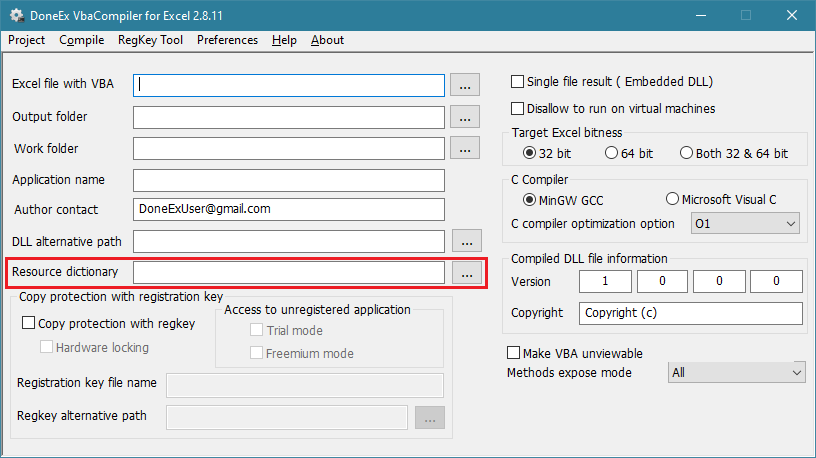
When you click compile, VbaCompiler compiles your VBA project into a secure native Windows DLL file, natively embedding your custom RTM dictionary. Your distributed Excel workbook or add-in will now display fully localized, professional interface prompts tailored exactly to your target audience.


