This guide explains how to compile your Excel VBA project using VBA Compiler. The process converts VBA code into a native Windows DLL, helping protect your source code and improve performance.
Prerequisites
Before you start, make sure you have:
- Windows 10 or later
- Microsoft Excel 2010 or later
- VBA Compiler installed
- An Excel workbook or add-in containing VBA code
See the product system requirements.
Steps to Compile Excel VBA Code
1. Enable VBA Project Access
In Excel, go to:
File → Options → Trust Center → Trust Center Settings → Macro Settings
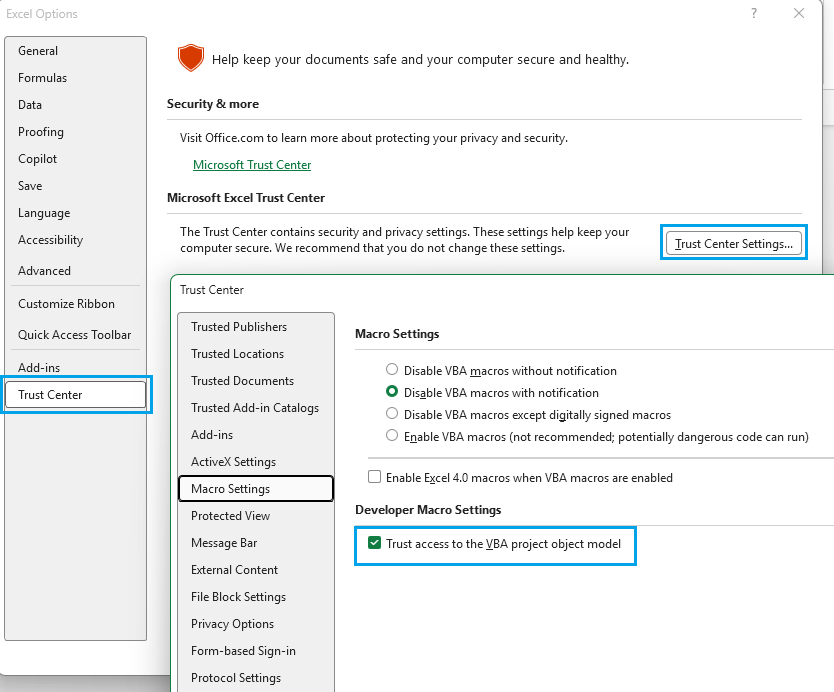
Enable Trust access to the VBA project object model.
2. Check for VBA Errors
Open the VBA Editor (Alt + F11) and select:
Debug → Compile VBA Project
Fix any errors reported by Excel and repeat until the option becomes unavailable (grayed out). This ensures your code is ready for compilation with VbaCompiler for Excel.
3. Create a Backup
Although VBA Compiler does not modify the original workbook, keeping a backup copy is recommended.
The simplest way – just copy your Excel workbook or add-in to another folder.
4. Remove VBA Project Password
If your VBA project is password protected, remove the password before compiling. The compiler requires full access to the source code. If you want you can apply VBA Project password again in compiled workbook.
5. Open VBA Compiler
Launch VBA Compiler from the desktop shortcut or Start menu.
6. Select the Excel File
In the Excel File with VBA field, browse to and select the workbook or add-in you want to compile.
7. Choose an Output Folder
Specify where the compiled files will be created. The output typically includes the compiled workbook and generated DLL files.
8. Configure Compilation Options
Adjust any required settings, such as:
- Target Excel bitness (32-bit or 64-bit)
- Output location
- Application name
- Code protection options
Configure only the options needed for your project.
9. Start Compilation
Select Compile from the main menu.
The compiler will process your VBA code and generate the compiled output.
10. Verify the Output
After compilation completes successfully, review the generated files in the output folder and test the compiled workbook to confirm everything works as expected.


