How to Protect and License Excel Add-In from Being Pirated or Shared
You’ve spent weeks—or even months—perfecting a custom Excel add-in. It automates complex financial models, generates automated reports, or saves hours of tedious data entry. But as soon as you send that .xlam file to your first paying client, a silent fear kicks in: What stops them from emailing your add-in to their colleagues or posting it online? If you rely on Excel’s native protection, the short answer is nothing protects your Excel add-in. Many developers assume that putting a password on their VBA project is enough to protect excel xla/xlam files. Unfortunately, standard VBA passwords offer almost zero actual security.
To build a profitable software business around Excel, you need a robust way to prevent Excel add-in sharing and license your Excel add-in. Here is a practical guide on how to protect your intellectual property, lock your add-in to specific hardware, and keep your source code safe from piracy.
Why Native Password Protection Fails to Protect Excel XLA/XLAM Files
Most developers start by protecting their VBA projects with a standard password inside the Visual Basic Editor (VBE). Unfortunately, this offers virtually zero real protection.Online password bypass tools, simple hex-editing tricks, and open-source VBA strippers can remove VBA password protection in seconds.
It really is that easy! An .xlam or .xla file is fundamentally an open container holding interpreted macro code. Anyone with an internet connection can download free, open-source tools that strip or bypass VBA project passwords in under 30 seconds.
Key Takeaway: If your licensing checks rely on plain VBA hidden inside a password-protected .xlam file, any user can simply crack the project password, delete your license validation subroutines, and keep using your add-in forever.
To truly protect Excel xla/xlam assets, you must move beyond file-level passwords and block the ability to edit or view the source code altogether.
Implementing a Hardware Locked License for Excel Add-Ins
How Computer IDs Work
-
Motherboard Serial Number
-
CPU Processor Identifier
-
Primary Storage Drive Volume Serial / Serial Number
-
MAC Address of the primary Network Interface Card (NIC)
The Registration Workflow
-
Installation: The client installs the add-in. Upon launch, the software reads the computer’s Machine ID.
-
Activation: The client submits their Machine ID along with their purchase order number to your licensing service.
-
Key Generation: You generate an activation key using the licensing tool and send the generated key to your client.
-
Validation: The add-in verifies the activation key locally. If the key matches the client’s current hardware configuration, full functionality is unlocked. If the file is emailed to a colleague the add-in looks for a key, which—if present—has a mismatched Machine ID and locks execution.
Protect Your Excel Add-in By Compiling VBA Code into a Native DLL
How DLL Compilation Enforces Licensing
-
Native Machine Code: Compiling converts interpreted VBA statements into machine-level binary code (DLL). Binaries cannot be viewed or edited in the Excel VBA Editor.
-
Direct Windows API Access: A compiled DLL can directly hook into low-level Windows APIs (kernel32, advapi32) to query hardware parameters, inspect memory, and handle cryptographic validation natively.
-
Tamper Prevention: Cracking a compiled C++ DLL requires advanced reverse-engineering skills and tools (like x64dbg or IDA Pro). Simple password removers or text editors are completely ineffective.
-
Execution Protection: If a user attempts to tamper with the entry points or strip licensing routines, the DLL integrity check fails, immediately halting execution and crashing the unauthorized instance.
Pure VBA code cannot securely perform hardware checks on its own. Even if you write a complex macro to pull motherboard serial numbers, an end-user who cracks your VBA password can simply modify any verification code.
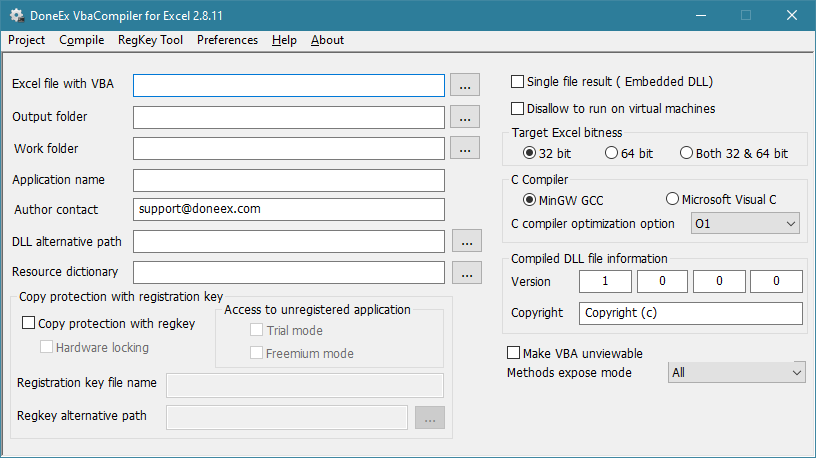
The best solution is compiling your vulnerable VBA code into a native Windows Dynamic Link Library (.dll) using DoneEx VBACompiler.
| Security Aspect | Standard VBA (.xlam) | Compiled Native DLL |
| Code Storage | Plain text / Interpreted bytecode | Compiled Machine Code |
| Password Removal | trivial (< 30 seconds) | Impossible (No password to strip) |
| Windows API Access | Vulnerable to user interception | Safe, direct system-level execution |
| Source Tampering | Easy to edit and re-save | Binary file cannot be edited in VBE |
Relying on standard Excel protection to sell commercial tools exposes your intellectual property to rampant piracy. By combining hardware locking excel add-in architecture (Computer IDs) with binary compilation (converting VBA to native Windows DLLs), you create a robust security shield. This setup ensures that your registration checks cannot be bypassed, helping you prevent Excel add-in sharing and secure your software revenue.