Fix the Excel “Microsoft Has Blocked Macros From Running” Error
If you rely on Excel macros to run your daily business operations, you’ve likely run into a frustrating brick wall recently as you may find your Excel macros blocked. The familiar yellow “Enable Content” button is gone for downloaded files. In its place sits an intimidating, unyielding red banner:

This isn’t a temporary glitch or a bug. It is a permanent, deliberate security update from Microsoft designed to stop malware. But what does this mean for your workflows? If your team suddenly faces the Excel macros blocked from an untrusted source error, you can no longer simply click past it or relax your security settings. Let’s break down exactly why this error happens and look at the modern, stress-free way to bypass it for good.
Why Is Microsoft Blocking Excel Macros?
To understand how to fix the problem, you need to understand how Windows tracks files. This aggressive security stance is governed by a hidden tracking attribute called Mark of the Web (MOTW).
Whenever you download an Excel file (.xlsm) from outside your local network—whether it’s from a web browser, a Slack channel, an email attachment in Outlook, or an unmapped cloud drive—Windows tags it. Windows uses a hidden file feature called an Alternate Data Stream (ADS) to stamp a “Zone Identifier” onto the file. If you were to peak behind the curtain using a command line tool, you would see text that looks like this:
[ZoneTransfer]
ZoneId=3
ReferrerUrl=https://externalpartner.com/
HostUrl=https://externalpartner.com/assets/vba-tool.xlsm
That ZoneId=3 tells Excel, “This file came from the wild internet.”
The moment Excel sees that tag on a file containing VBA macros, it completely bypasses your standard Excel Trust Center settings. It immediately shuts down the macro engine to prevent potential security threats, leaving your users stuck with the unclickable red error bar.
Removing the Microsoft Excel Macro Security Block
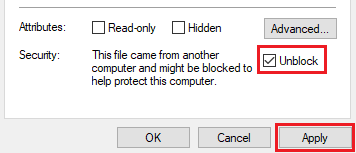
To remove the Microsoft security block on your Excel workbook, right click on the file in question. Then you must click on Properties. A window will pop up, where you must press on the “Unblock” checkbox under the general tab, then click on the “Apply” button once you have done so.
The Hidden Risk of Manual Unblocking (And How to Protect Your IP)
While checking the “Unblock” box solves the functional problem for your end-users, it exposes a massive operational risk for you, the developer. The moment an end-user manually unblocks a standard .xlsm file on their machine, your entire codebase becomes vulnerable. Standard Excel VBA project passwords are notoriously easy to crack, leaving your proprietary formulas, business logic, and intellectual property completely exposed to being viewed, copied, or altered.
This is where VbaCompiler for Excel becomes an essential part of your deployment strategy.
Instead of leaving your source code vulnerable inside an unblocked workbook, VbaCompiler strips the core business logic out of the file entirely, converts it into C code, and compiles it into a secure, native Windows binary (.dll). The file your users download still requires them to follow the manual unblocking steps to run, but your actual intellectual property remains locked behind military-grade encryption.
By pairing the manual unblocking fix with VbaCompiler for Excel, you ensure a smooth workflow for your users without ever compromising the security of your code.